AI Segmentation
Automatically identify and segment anatomical structures from CT volumes using deep learning models.
- The AI Segmentation tool applies nnU-Net v2 deep learning models to a loaded CT volume to identify and segment anatomical structures automatically, producing selectable and interactable segments without manual outlining.
Note: The AI Segmentation tool is intended for assistive use only. The segments it produces must be reviewed and corrected by a qualified user before they are exported or used for any other task.
The AI tool is located in the tools panel of the Segment Editor.
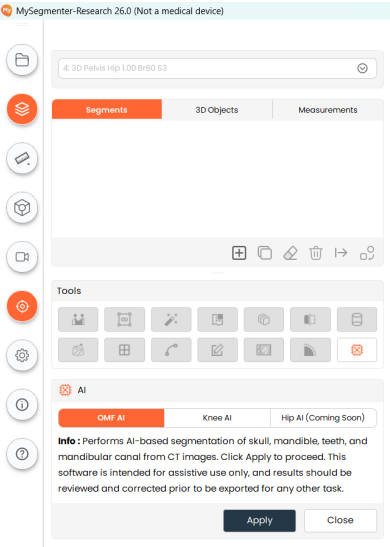
Steps:
- Load the CT volume to be segmented and confirm that a segmentation is available in the Segments tab. The tool validates that both a source volume and a segmentation node exist before it proceeds.
- Choose the AI tool from the tools panel of the Segment Editor. The AI panel opens beneath the tools panel.
- Select the model to run from the model selection buttons: OMF AI, Knee AI, or Hip AI. The Info label below the buttons lists the structures the selected model segments and restates the assistive-use disclaimer.
- Click Apply to run the selected model, or Close to leave the panel without running it.
- The first time a model is run, a single confirmation dialog describes all of the components that must be downloaded. Accept it to continue, or cancel to return to the panel without downloading anything.
- Follow the progress dialog, which covers the whole workflow: PyTorch installation, model download, and inference. Click Cancel at any point to stop the workflow.
- When inference completes, the resulting segments are added to the Segments tab, where they can be selected, edited, and used like any other segment.
Additional Information
Model Selection
- OMF AI: Performs AI-based segmentation of the skull, mandible, teeth, and mandibular canal from CT images.
- Knee AI: Performs AI-based segmentation of the knee anatomical structures from CT images.
- Hip AI: Performs AI-based segmentation of the hip anatomical structures from CT images.
- Each model carries its own configuration — thresholds, download locations, and model parameters — which is applied automatically when the model is selected. No manual parameter entry is required.
- Only one model runs at a time. Selecting a different model updates the Info label and the configuration used by Apply.
Hip AI
Hip AI segments the bony structures of the pelvis and proximal femur from a CT volume. It produces four separate segments, each named and coloured independently so that left and right structures can be reviewed, edited, and exported on their own:
- Right Femur
- Left Femur
- Right Pelvis
- Left Pelvis
The results are standard segments: they appear in the Segments tab and can be refined with any of the segmentation tools described in this manual, converted to 3D objects, measured, or exported.
Knee AI
Knee AI segments the bony structures of the femur, pelvis and fibula from a CT volume. It produces 3 separate segments that can be reviewed, edited, and exported on their own:
- Femur
- Fibula
- Tibia
The results are standard segments: they appear in the Segments tab and can be refined with any of the segmentation tools described in this manual, converted to 3D objects, measured, or exported.
First-Time Setup and Downloads
- The first time an AI model is used, the required deep learning components must be installed. A single confirmation dialog describes every download that is needed before any of them begins.
- The components include the PyTorch runtime and the weights of the selected model, which are retrieved from the download location defined in that model’s configuration.
- An internet connection is required for the initial download. Once the components are installed, subsequent runs of the same model do not download them again.
Progress and Cancellation
- A single progress dialog covers the entire workflow — PyTorch installation, model download, and inference — so the stage in progress is visible at all times.
- The workflow can be cancelled from the progress dialog at any stage. Cancelling stops the workflow and leaves the existing scene unchanged.
- Processing time depends on the size of the volume and on the available hardware. A dedicated GPU, configured as described in the GPU Configuration section, significantly reduces inference time.
Reviewing AI Results
- AI results are a starting point, not a final segmentation. Inspect every segment slice by slice in the 2D views and in the 3D view before using it.
- Correct any under- or over-segmentation with the Edit Segment, Islands, Smoothing, or Morphological tools, and verify that left and right structures are correctly identified.
- Segments produced by the AI Segmentation tool must be reviewed and corrected before they are exported, converted to 3D objects, or used for pre-operative planning or educational purposes.